


Connecting a microphone to your computer opens up a world of possibilities, from crystal-clear calls to professional recordings. This guide breaks down how to connect microphone to computer, covering various mic types like USB, 3.5mm, and XLR. You’ll find simple, step-by-step instructions for both Windows and macOS, ensuring your audio setup is flawless and ready for action.
Ever wondered how to connect microphone to computer for your next video call, podcast recording, or gaming session? You’re not alone! A good microphone can dramatically improve your audio quality, making your voice clear and professional, whether you’re chatting with friends, streaming live, or laying down tracks for a new song. The built-in microphones in most laptops and webcams are often just not good enough, picking up all sorts of background noise and sounding thin.
Fortunately, connecting an external microphone to your computer is usually a straightforward process. However, with so many different types of microphones and computer ports out there, it can sometimes feel a little confusing. Don’t worry, we’re here to demystify the process for you. This comprehensive guide will walk you through everything you need to know about how to connect microphone to computer, no matter what kind of mic you have or what computer you’re using. Let’s dive in and get you sounding fantastic!
Key Takeaways
- Identify Your Microphone Type: Before connecting, know if you have a USB, 3.5mm (TRS/TRRS), XLR, or wireless microphone, as each requires a different connection method.
- Locate the Correct Port: Your computer has specific input jacks (USB, 3.5mm mic-in, combo jack) for different microphone types. Using the right port is crucial for successful connection.
- USB Microphones are Plug-and-Play: USB mics are generally the easiest to connect, simply plugging into an available USB port, with drivers often installing automatically.
- 3.5mm Jacks Need Attention to Detail: For 3.5mm mics, distinguish between dedicated mic-in ports (often pink) and combo jacks, potentially requiring a splitter for compatibility.
- XLR Microphones Require an Audio Interface: Professional XLR mics need an external audio interface or mixer to convert the analog signal to digital for your computer, often requiring phantom power.
- Configure Software Settings: After physical connection, always navigate to your computer’s sound settings (Windows Sound Settings, macOS Sound Preferences) to select the correct input device and adjust levels.
- Troubleshoot Common Issues: If your mic isn’t working, check cable connections, driver status, input device selection, and microphone permissions in your operating system settings.
📑 Table of Contents
- Understanding Your Microphone and Computer Ports
- Connecting USB Microphones: The Easiest Path
- Connecting 3.5mm Jack Microphones: Pinpoint the Right Port
- Connecting XLR Microphones: The Professional Setup
- Connecting Wireless and Bluetooth Microphones
- Optimizing Your Microphone Settings and Troubleshooting
- Conclusion: Your Voice, Amplified
Understanding Your Microphone and Computer Ports
Before we can connect anything, it’s essential to identify what kind of microphone you have and what ports are available on your computer. This foundational step will determine which connection method you’ll use.
Different Types of Microphones
- USB Microphones: These are incredibly popular for their simplicity. They connect directly to a USB port on your computer and often require minimal setup. Think Blue Yeti, Rode NT-USB, or HyperX QuadCast. They usually contain their own analog-to-digital converter.
- 3.5mm Jack Microphones: These are common for entry-level headsets, lavalier mics, or older standalone microphones. They connect via a small, round plug, similar to headphone jacks.
- TRS (Tip-Ring-Sleeve): These typically have two black rings on the plug and are standard for stereo audio or dedicated microphone inputs (like the pink port on a desktop).
- TRRS (Tip-Ring-Ring-Sleeve): These have three black rings and are usually found on smartphone headsets or modern laptop combo jacks that handle both audio input and output through a single port.
- XLR Microphones: These are professional-grade microphones known for their robust build and high-quality audio. They feature a three-pin connector (male on the mic, female on the cable). Think Shure SM58, Rode NT1. They don’t connect directly to a computer; they need an intermediary device.
- Wireless Microphones: These transmit audio signals wirelessly to a receiver, which then connects to your computer. The receiver might use USB, a 3.5mm jack, or even XLR.
- Bluetooth Microphones: A specific type of wireless microphone that connects directly to your computer’s Bluetooth radio without a separate receiver.
Identifying Computer Ports
Now, let’s look at your computer’s side or back panel:
- USB Ports: Rectangular ports. You’ll find USB-A (the most common type), USB-C (smaller, reversible), and sometimes Micro-USB or Mini-USB.
- 3.5mm Audio Jacks: Small, round ports.
- Dedicated Microphone Input: Often colored pink or marked with a microphone icon. This is for TRS 3.5mm mic plugs. Desktops usually have this.
- Headphone Output: Often green or marked with a headphone icon. This is for audio output.
- Combo Jack: A single 3.5mm port that handles both audio input and output. Laptops often have this. It’s designed for TRRS plugs.
- XLR Ports: You won’t find these directly on a computer. If your microphone uses XLR, you’ll need an additional device called an audio interface.
Connecting USB Microphones: The Easiest Path
USB microphones are designed for simplicity, making them a fantastic choice for beginners and pros alike. Learning how to connect microphone to computer when it’s a USB model is truly plug-and-play.
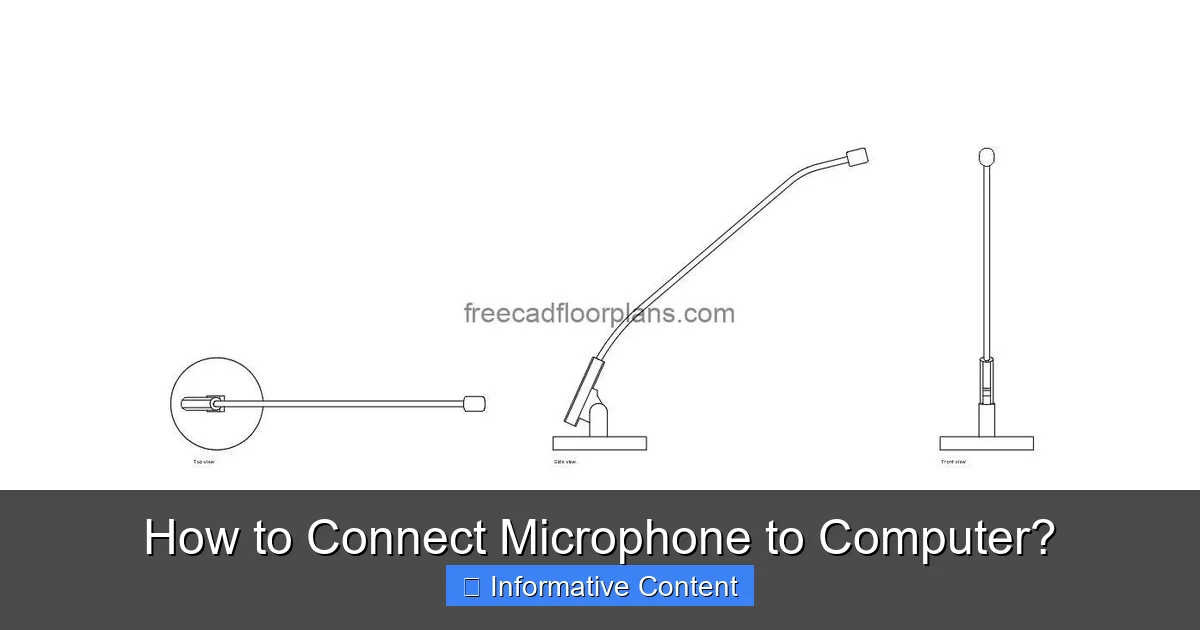
Visual guide about Microphone
Image source: freecadfloorplans.com
Step-by-Step Connection
- Plug It In: Take your USB microphone and plug its cable directly into an available USB port on your computer. It can be a USB-A or USB-C port, depending on your microphone’s cable.
- Wait for Driver Installation: For most modern operating systems (Windows 10/11, macOS), your computer will automatically detect the new hardware and install the necessary drivers. You might see a small notification pop up confirming this. This usually takes just a few seconds.
- Verify Connection (Windows):
- Right-click the speaker icon in your taskbar and select “Sound Settings” or “Open Sound settings.”
- Under the “Input” section, click the dropdown menu for “Choose your input device.”
- Select your USB microphone from the list. It will usually be named after the microphone brand and model (e.g., “Blue Yeti,” “Rode NT-USB”).
- Speak into your microphone and observe the “Test your microphone” bar. If it’s moving, your mic is picking up sound!
- You can also click “Device properties” or “More sound settings” to adjust the volume level and other advanced options.
- Verify Connection (macOS):
- Click the Apple menu in the top-left corner, then “System Settings” (or “System Preferences” on older macOS versions).
- Click on “Sound.”
- Go to the “Input” tab.
- Select your USB microphone from the list of devices.
- Speak into your mic and watch the “Input level” meter. If it’s responding, you’re good to go.
- Adjust the “Input volume” slider to get a good recording level without peaking.
Tips for USB Microphones
- Direct Connection: Always try to plug your USB microphone directly into your computer, rather than a USB hub, especially if you experience issues. Hubs can sometimes introduce power or data problems.
- Driver Updates: While rare for USB mics, if you encounter problems, check the manufacturer’s website for updated drivers or firmware.
Connecting 3.5mm Jack Microphones: Pinpoint the Right Port
Connecting a 3.5mm microphone can be a bit trickier than USB, mainly because of the different types of 3.5mm jacks. The key is knowing your port.
Dedicated Microphone Input (TRS 3.5mm)
If your desktop computer has a dedicated microphone input (often pink or marked with a mic icon), this is the simplest scenario for a TRS 3.5mm microphone.
- Plug It In: Insert the 3.5mm microphone plug into the pink (or mic-in) port on your computer.
- Verify Connection (Windows): Follow the same steps as for a USB mic: right-click the speaker icon > “Sound Settings” > “Input” section > select your 3.5mm microphone (it might appear as “Microphone (Realtek High Definition Audio)” or similar). Test the levels.
- Verify Connection (macOS): macOS usually doesn’t have dedicated mic-in ports for standard 3.5mm plugs. If you have a Mac, you’ll likely need a USB audio adapter or use a combo jack.
Combo Jack (TRRS 3.5mm)
Many modern laptops have a single 3.5mm combo jack, which combines both headphone output and microphone input into one port. This port expects a TRRS plug.
- If Your Mic Has a TRRS Plug: Simply plug it into the combo jack. Then follow the verification steps for Windows or macOS as described above. The system should recognize it as a microphone.
- If Your Mic Has a TRS Plug (or separate headphone/mic plugs): This is where an adapter comes in. You’ll need a “3.5mm TRRS splitter” or “headset adapter” that converts a single TRRS jack into separate TRS headphone and microphone jacks.
- Plug your TRS microphone into the microphone input of the splitter (often pink).
- Plug the splitter’s TRRS plug into your laptop’s combo jack.
- Follow the verification steps for Windows or macOS.
Tips for 3.5mm Microphones
- Color Coding: Remember the standard: pink for mic-in, green for line-out. If your microphone has two plugs (one for mic, one for headphones), match the colors.
- USB Audio Adapters: If your computer lacks the correct 3.5mm ports or if you’re experiencing static/poor quality, a cheap USB audio adapter (USB to 3.5mm mic/headphone jack) can be a great solution. It essentially provides external 3.5mm ports via a USB connection.
Connecting XLR Microphones: The Professional Setup
XLR microphones offer superior sound quality and durability, making them a favorite for recording studios, broadcasters, and serious podcasters. However, they can’t plug directly into your computer. You’ll need an intermediary device: an audio interface.
What is an Audio Interface?
An audio interface is an external device that converts the analog signal from your XLR microphone into a digital signal your computer can understand. It acts as an external sound card, often with preamps to boost the mic signal and phantom power to operate certain condenser microphones. Most audio interfaces connect to your computer via USB (USB-A or USB-C).
Step-by-Step Connection
- Connect XLR Mic to Audio Interface: Plug your XLR microphone’s cable into an XLR input on your audio interface. Ensure it clicks securely into place.
- Connect Audio Interface to Computer: Use a USB cable to connect your audio interface to an available USB port on your computer.
- Install Drivers (if required): Most audio interfaces require specific drivers. Visit the manufacturer’s website (e.g., Focusrite, Behringer, PreSonus) to download and install the latest drivers for your operating system. Follow their installation instructions carefully. You might need to restart your computer.
- Enable Phantom Power (if needed): If you have a condenser microphone, it will require 48V phantom power to operate. Look for a “48V” button on your audio interface and press it. Dynamic microphones (like the Shure SM58) generally do not need phantom power.
- Adjust Gain on Interface: Speak into your microphone and slowly turn up the “gain” knob on your audio interface. Watch the input level meters on the interface (and in your computer’s sound settings) to get a strong signal without clipping (going into the red).
- Verify Connection (Windows):
- Right-click the speaker icon > “Sound Settings” > “Input.”
- Select your audio interface from the dropdown list (e.g., “Focusrite Scarlett,” “ASIO Driver”).
- Test the microphone level.
- Verify Connection (macOS):
- Apple menu > “System Settings” (or “System Preferences”) > “Sound” > “Input.”
- Select your audio interface from the list.
- Monitor the “Input level” and adjust the “Input volume” slider.
Tips for XLR Microphones and Interfaces
- Balanced Cables: Always use good quality XLR cables. They are “balanced,” meaning they help reject noise over longer distances.
- Monitoring: Most audio interfaces have a headphone jack. Connect your headphones here to monitor your microphone’s sound directly from the interface, which helps avoid latency (delay).
- Software Settings: In addition to system-level settings, you’ll likely need to select your audio interface as the input device within your recording software (DAW), communication app, or streaming platform.
Connecting Wireless and Bluetooth Microphones
Wireless and Bluetooth microphones offer incredible freedom of movement, perfect for presentations, performances, or active content creation. The process to connect microphone to computer varies slightly here.
Wireless Microphones (with a receiver)
These systems typically consist of a microphone (handheld, lavalier, or headset) and a receiver unit. The receiver is what connects to your computer.
- Power On: Ensure both your wireless microphone and its receiver unit are powered on and paired according to their instructions.
- Connect Receiver to Computer:
- USB Receiver: Plug the receiver directly into a USB port on your computer. Like USB microphones, drivers usually install automatically.
- 3.5mm Receiver: Connect the receiver’s 3.5mm output cable into your computer’s dedicated mic-in port (pink) or a combo jack (possibly with a TRRS splitter, as discussed earlier).
- XLR Receiver: Some professional wireless systems have XLR outputs on their receiver. In this case, connect the receiver to an audio interface via an XLR cable, and then connect the interface to your computer.
- Verify Connection: Follow the same verification steps for Windows or macOS as described for USB or 3.5mm microphones, selecting the wireless receiver as your input device.
Bluetooth Microphones
Bluetooth mics connect directly to your computer’s built-in Bluetooth radio.
- Enable Bluetooth: Make sure Bluetooth is enabled on your computer.
- Windows: Go to “Settings” > “Devices” > “Bluetooth & other devices” and toggle Bluetooth to “On.”
- macOS: Go to “System Settings” (or “System Preferences”) > “Bluetooth” and toggle Bluetooth to “On.”
- Put Mic in Pairing Mode: Put your Bluetooth microphone into pairing mode. This usually involves holding down a power or dedicated pairing button until an indicator light flashes. Consult your microphone’s manual for exact instructions.
- Pair with Computer:
- Windows: In “Bluetooth & other devices,” click “Add Bluetooth or other device” > “Bluetooth.” Select your microphone from the list and follow any on-screen prompts.
- macOS: In “Bluetooth” settings, your microphone should appear under “Devices.” Click “Connect” next to its name.
- Verify Connection: After pairing, follow the verification steps for Windows or macOS, selecting your Bluetooth microphone as the input device.
Tips for Wireless & Bluetooth Mics
- Battery Life: Always keep an eye on the battery levels of wireless and Bluetooth microphones, as they can die unexpectedly in the middle of a session.
- Interference: Wireless systems can sometimes experience interference. Try to maintain line-of-sight between the mic and receiver, and keep them away from other wireless devices.
- Latency: Bluetooth microphones can sometimes introduce a slight audio delay (latency), which might be noticeable in real-time monitoring or certain applications.
Optimizing Your Microphone Settings and Troubleshooting
Once your microphone is physically connected, a few tweaks in your computer’s settings can make a world of difference. Knowing how to connect microphone to computer isn’t just about plugging it in; it’s about making it sound great.
Adjusting Input Levels
This is crucial for good audio quality. You want your input level to be strong enough to be heard clearly, but not so strong that it “clips” or distorts. Aim for the input meter to generally be in the green or yellow range, occasionally touching orange, but rarely hitting red.
- Windows: In “Sound Settings” > “Input,” select your microphone, then click “Device properties” or “More sound settings.” In the “Levels” tab, adjust the “Microphone” slider. You might also have a “Microphone Boost” option; use this sparingly as it can introduce noise.
- macOS: In “Sound” > “Input,” select your microphone and adjust the “Input volume” slider.
Microphone Permissions (Windows & macOS)
Modern operating systems have privacy features that might prevent applications from accessing your microphone. If your mic isn’t working in a specific app (e.g., Zoom, OBS, Discord), check these settings.
- Windows: Go to “Settings” > “Privacy & security” > “Microphone.” Ensure “Microphone access” is on, and “Let apps access your microphone” is also on. Scroll down to “Choose which apps can access your microphone” and make sure the relevant application is enabled.
- macOS: Go to “System Settings” (or “System Preferences”) > “Privacy & Security” > “Microphone.” Make sure the checkbox next to the application you’re using is enabled.
Testing Your Microphone
Always test your microphone before an important call or recording session. Most operating systems and communication apps have a built-in test feature. Speak naturally, at the volume you’ll be using, and listen back to ensure clarity and appropriate levels.
Common Troubleshooting Tips
If your microphone isn’t working after you connect microphone to computer:
- Check Connections: Is everything plugged in firmly? Is the correct cable being used?
- Restart Computer: A simple restart can often resolve driver conflicts or minor software glitches.
- Check Drivers: For audio interfaces or some USB mics, ensure drivers are installed and up-to-date. Reinstalling them can sometimes help.
- Select Correct Input Device: Double-check that your computer’s sound settings, and the settings within the application you’re using, are pointing to the correct microphone.
- Volume Levels: Ensure the microphone’s gain/volume on the device itself (if applicable), the audio interface, and the computer’s settings are turned up.
- Test Another Port/Computer: If possible, try plugging the microphone into a different USB or 3.5mm port. If you have another computer, try connecting it there to rule out a faulty microphone or port.
- Mute Button: Does your microphone or headset have a physical mute button? Make sure it’s not engaged.
- Default Communication Device: In Windows, sometimes setting your mic as the “Default Communication Device” in “Sound Control Panel” (from “More sound settings”) can help.
Conclusion: Your Voice, Amplified
Connecting a microphone to your computer might seem like a small step, but it’s a huge leap for your audio quality. Whether you’re a seasoned pro or just starting your journey into content creation, clear and crisp audio is paramount. By following this guide, you now have a comprehensive understanding of how to connect microphone to computer, regardless of its type.
From the simplicity of USB mics to the professional demands of XLR setups, and the convenience of wireless options, you’re now equipped with the knowledge to get your voice heard. Remember to always verify your connections, optimize your software settings, and troubleshoot any issues methodically. Experiment with different placements and settings until you find the sweet spot for your unique voice and environment. Go forth and create amazing audio!
🎥 Related Video: PC Me Mobile Ke Mic SetUp Kaise Kare | Mic PC Me SetUp karna ke baad chalega
📺 START GURU
PC Me Mobile Ke Mic SetUp Kaise Kare | Mic PC Me SetUp karna ke baad chalega Hi I am Rakesh Das. welcome to your …
Frequently Asked Questions
How do I connect a USB microphone to my computer?
Connecting a USB microphone is usually plug-and-play. Simply plug the microphone’s USB cable into an available USB port on your computer. Your computer will typically install the necessary drivers automatically, and then you just need to select the microphone as your input device in your sound settings.
What if my laptop only has one 3.5mm jack?
Many modern laptops feature a single 3.5mm combo jack for both audio input and output. If your microphone has a separate 3.5mm TRS plug, you’ll need a TRRS splitter adapter to convert the single combo jack into separate headphone and microphone ports for compatibility.
Do I need an audio interface to connect an XLR microphone?
Yes, XLR microphones cannot connect directly to a computer. You will need an external audio interface, which converts the analog XLR signal to a digital signal your computer can understand, often providing necessary phantom power and preamps.
My microphone is connected but no sound is coming through. What should I do?
First, check your computer’s sound settings (Input tab) to ensure the correct microphone is selected and its volume level is turned up. Also, verify that the microphone is not muted and that the specific application you’re using has permission to access your microphone in your system’s privacy settings.
How do I improve the sound quality of my connected microphone?
To improve sound quality, ensure your microphone is placed optimally (e.g., close to your mouth but not too close to cause popping). Adjust input gain/volume levels to avoid clipping, minimize background noise in your environment, and consider using a pop filter or acoustic treatment.
Can I connect a wireless microphone to my computer?
Yes, wireless microphones connect to your computer via their receiver unit. The receiver typically plugs into your computer via a USB port, a 3.5mm jack, or sometimes an XLR connection (which then requires an audio interface), depending on the specific wireless system.
