


Unlock the full potential of your microphone with this friendly guide! We’ll walk you through everything from understanding different mic types and connecting them, to optimizing settings for crystal-clear audio. Learn how to use the microphone for online meetings, content creation, and troubleshooting common problems, ensuring your voice is always heard loud and clear. Say goodbye to muffled sound and hello to crisp communication.
Ever found yourself on a call, trying to speak, only to be met with “We can’t hear you!” or “You sound really quiet”? Or perhaps you’re diving into content creation and want your voice to shine through with crystal clarity. Understanding how to use the microphone effectively is more than just plugging it in; it’s about making sure your voice is heard exactly as you intend.
In today’s digital world, a good microphone is just as important as a clear screen. From online meetings and virtual classrooms to gaming, podcasting, and creating videos, your microphone is your voice’s gateway to the world. But if you’ve ever felt overwhelmed by settings, connections, or simply making yourself sound good, don’t worry! This friendly guide is here to demystify the process and show you exactly how to use the microphone for any situation.
We’ll cover everything from connecting your microphone to fine-tuning its settings. We’ll explore tips for achieving the best sound quality and even help you troubleshoot those pesky common problems. By the end of this article, you’ll be speaking with confidence, knowing your message will come across loud and clear. Let’s get started on your journey to superior audio!
Key Takeaways
- Understand Your Mic: Know the difference between built-in, USB, and XLR microphones to choose the right tool for your needs.
- Connect and Configure: Properly connect your microphone to your device and configure its settings within your operating system and specific applications for optimal performance.
- Optimize Placement: Position your microphone correctly, typically close to your mouth, to capture your voice clearly and minimize background noise.
- Manage Audio Levels: Adjust gain and volume settings to prevent your sound from being too quiet or distorted, ensuring a balanced audio input.
- Improve Room Acoustics: Be mindful of your environment; a quiet space with soft furnishings helps absorb echoes and produce cleaner sound.
- Troubleshoot Common Issues: Be prepared to check connections, software settings, and drivers when your microphone isn’t working as expected.
- Practice Good Mic Etiquette: Mute your microphone when not speaking and avoid sudden loud noises to maintain a pleasant listening experience for others.
📑 Table of Contents
Understanding Your Microphone
Before you even plug in your microphone, it’s helpful to know a little about the different types out there. This knowledge will help you choose the right mic for your needs and understand its capabilities. So, how do I use the microphone I have if I don’t know what kind it is?
Built-in Mics vs. External Mics
- Built-in Microphones: Most laptops, webcams, and smartphones come with a small microphone built right into their design. These are super convenient! You don’t need to connect anything extra. They are great for quick chats or casual use. However, they usually pick up a lot of background noise and don’t offer the best sound quality.
- External Microphones: These are separate devices that you connect to your computer or other hardware. They come in many shapes and sizes, from small clip-on lavalier mics to large studio condenser microphones. External mics almost always provide much better sound quality and more control over your audio than built-in options.
USB Mics vs. XLR Mics
External microphones typically connect in one of two ways:
- USB Microphones: These are incredibly easy to use. You simply plug them into an available USB port on your computer. Your computer usually recognizes them right away. They’re perfect for beginners and offer great sound quality for podcasts, streaming, and online meetings without needing extra equipment. Examples include the Blue Yeti or Rode NT-USB Mini. When considering how do I use the microphone via USB, remember it’s usually plug-and-play.
- XLR Microphones: These are professional-grade microphones. They connect using a special three-pin XLR cable. Unlike USB mics, XLR mics require an additional piece of equipment called an “audio interface” or “mixer.” This device converts the analog signal from the microphone into a digital signal your computer can understand. XLR setups offer the highest sound quality and flexibility but are more complex and expensive. They’re common in recording studios and professional broadcasting.
Omni-directional vs. Uni-directional (Cardioid) Mics
Microphones pick up sound in different patterns:
- Omni-directional: These mics pick up sound from all directions equally. They’re great for recording group conversations or capturing the ambiance of a room. However, they’re also very sensitive to background noise.
- Uni-directional (Cardioid): These mics primarily pick up sound from the front, rejecting sound from the sides and rear. This makes them ideal for isolating your voice and minimizing background noise, which is often what you want for online communication, streaming, or solo content creation. Most USB microphones are cardioid.
Connecting and Setting Up Your Microphone
Now that you know a bit about microphone types, let’s get into the practical steps of connecting and setting up your device. This is where you learn the core of how to use the microphone.
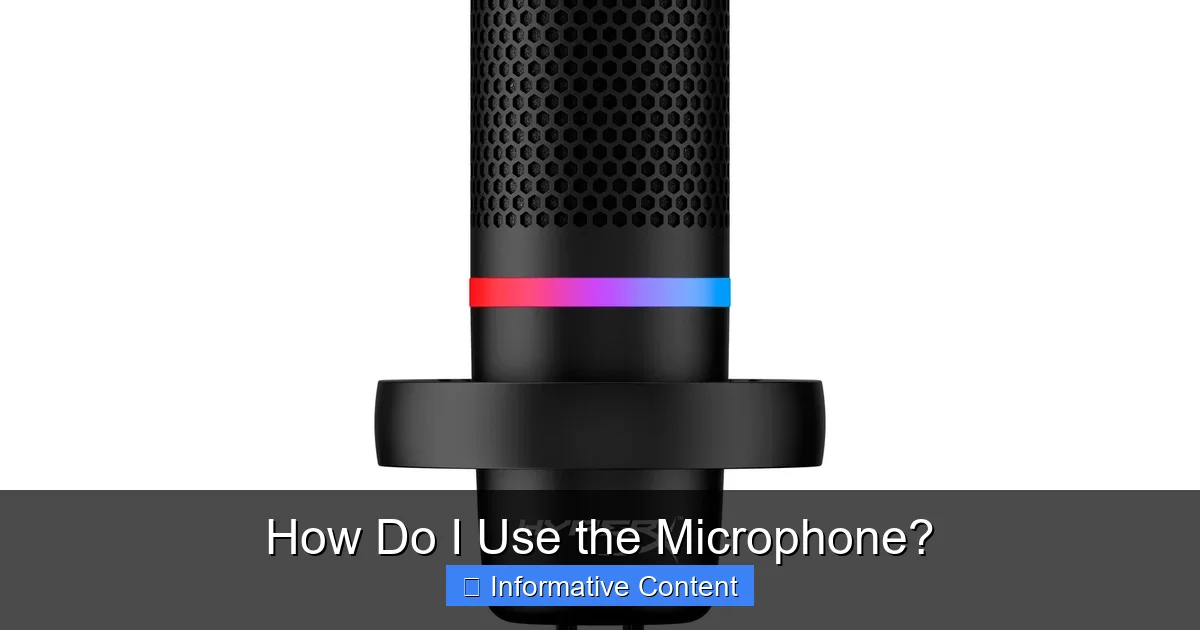
Visual guide about Microphone
Image source: cdn.shopify.com
Physical Connection
This part is usually straightforward:
- For USB Microphones: Simply plug the USB cable from your microphone into an available USB port on your computer. Make sure it’s fully seated. Your computer should usually detect it automatically.
- For XLR Microphones: Connect the XLR cable from your microphone to your audio interface. Then, connect the audio interface to your computer using a USB cable. You might also need to connect the audio interface to power.
- For Headsets: Most headsets use either a single 3.5mm jack (for combined audio and mic), two 3.5mm jacks (one for headphones, one for mic), or a USB connection. Plug them into the correct ports on your computer.
Software Configuration (Operating System Settings)
After physical connection, you need to tell your computer which microphone to use. This is a crucial step when figuring out how do I use the microphone.
Windows Settings:
- Right-click the speaker icon in your taskbar (bottom right corner).
- Select “Sound Settings” or “Open Sound settings.”
- Scroll down to the “Input” section.
- Under “Choose your input device,” click the dropdown menu and select your connected microphone. You should see its name listed (e.g., “Blue Yeti,” “Headset Microphone”).
- Speak into the microphone. You should see the “Test your microphone” bar move, indicating it’s picking up sound.
- Adjust the “Volume” slider here to change the input level. Start around 70-80%.
macOS Settings:
- Click the Apple menu in the top left corner of your screen.
- Select “System Settings” (or “System Preferences” on older versions).
- Click “Sound” (or “Sound” > “Input” tab).
- In the Input tab, select your connected microphone from the list.
- Speak into the microphone. The input level meter should react, showing it’s picking up sound.
- Adjust the “Input volume” slider to set the sensitivity.
Application-Specific Settings
Even after setting your default microphone in your operating system, many applications have their own audio settings. You might still wonder, “Okay, how do I use the microphone specifically in Zoom?”
- Zoom/Google Meet/Microsoft Teams:
- Before or during a call, look for a “Settings” or “Audio” icon (often a gear or microphone symbol).
- Under the “Microphone” section, select your preferred device from the dropdown list.
- Test your microphone if the option is available.
- Discord:
- Click the User Settings gear icon (bottom left).
- Go to “Voice & Video.”
- Under “Input Device,” select your microphone.
- Adjust “Input Volume” and “Input Sensitivity.” Use the “Let me check” button to test.
- Recording Software (e.g., Audacity, OBS Studio):
- Open your software’s audio input settings (often found in “Preferences,” “Settings,” or specific track controls).
- Select your microphone as the input device.
- Monitor the input levels to ensure you’re not too quiet or too loud (peaking).
Optimizing Your Microphone for Best Sound
Connecting your microphone is just the first step. To truly get the most out of it and ensure your voice sounds fantastic, you need to optimize its use. This is where you master how to use the microphone like a pro.
Microphone Placement
This is one of the most critical factors for good sound quality. The goal is to get the microphone close to your mouth, but not so close that you get popping noises.
- For Uni-directional Mics (most common): Position the microphone 4-6 inches (10-15 cm) from your mouth. Angle it slightly towards you, speaking directly into the top or front (depending on the mic’s design). This captures your voice clearly and minimizes room noise.
- For Headset Mics: Position the mic boom about 1-2 inches from the corner of your mouth, just off to the side. This avoids breath sounds directly hitting the mic.
- Avoid Too Far Away: The further your microphone is from your mouth, the more background noise it will pick up, and your voice will sound distant and echoey.
Room Acoustics
Your environment plays a huge role in your sound quality. Think about how do I use the microphone effectively in my space.
- Find a Quiet Space: Close windows and doors. Turn off fans, air conditioners, or anything else that makes noise.
- Dampen Echoes: Hard, bare surfaces (like walls, floors, and empty desks) reflect sound, creating echoes. Add soft furnishings like curtains, carpets, blankets, or even a cluttered bookshelf to absorb sound. A small room with lots of soft things is often better than a large, empty one.
Gain and Volume Levels
“Gain” is how sensitive your microphone is; “volume” is how loud the output is. Getting these right is key to avoiding distortion or being too quiet.
- Set Gain First: Adjust the gain (if your microphone or audio interface has a physical knob) or the input level in your computer’s sound settings. Speak naturally at your normal volume. You want the input level meter to consistently hit around 70-80% of its maximum range. It should peak into the “yellow” but rarely touch the “red” (which indicates clipping/distortion).
- Don’t Max Out: Resist the urge to crank the volume to 100%. This can introduce hiss or distortion.
- Monitor Your Sound: If you have headphones, plug them into your computer (or audio interface) and listen to your own voice. Does it sound clear? Is it too loud or too soft?
Pop Filters and Shock Mounts
These accessories can dramatically improve your sound:
- Pop Filter: This is a mesh screen placed between your mouth and the microphone. It blocks “plosive” sounds (like “p” and “b”) that create harsh pops when air hits the mic directly. A pop filter is highly recommended for any close-up vocal work.
- Shock Mount: This holds the microphone suspended with elastic bands. It helps isolate the microphone from vibrations that travel through your desk or mic stand (like typing, bumping the table), preventing rumbling noises in your audio.
Common Microphone Uses and Best Practices
Knowing how do I use the microphone for specific tasks can make a big difference in your results.
Online Meetings and Calls
For clear communication:
- Use a Headset or External Mic: These are far superior to built-in laptop mics for reducing background noise and clarifying your voice.
- Mute When Not Speaking: This is basic etiquette. It prevents coughs, sneezes, typing, and other background noises from disturbing others. Most meeting apps have a mute button, or your mic might have a physical one.
- Speak Clearly and Confidently: Enunciate your words. Maintain a consistent distance from your microphone.
Content Creation (Podcasts, Voiceovers, Streaming)
Quality matters here, so knowing how to use a microphone is paramount.
- Invest in a Good Mic: A quality USB or XLR microphone will elevate your content.
- Consistent Placement: Once you find the sweet spot for your mic, try to keep it there for all your recordings to maintain consistent sound.
- Pre-Roll Audio Test: Always record a few seconds of silence and then speak normally before starting your main recording. This helps you check levels and identify any unexpected background noise.
- Edit If Necessary: Use audio editing software to remove pauses, background hums, or adjust overall volume.
Gaming
Team communication needs to be crisp.
- Gaming Headsets are King: Many gaming headsets come with excellent built-in microphones specifically designed for clear in-game communication.
- Push-to-Talk: If your game or chat client supports it, consider using push-to-talk instead of always-on voice activation. This prevents your teammates from hearing your keyboard clicks or background chatter.
- Monitor Your Own Volume: Ensure your mic isn’t too loud for your teammates, causing distortion or painful audio spikes.
Troubleshooting Common Microphone Issues
Even with the best setup, sometimes things go wrong. Don’t panic! Here’s how do I use the microphone troubleshooting guide.
No Sound
- Check Physical Connection: Is the USB cable fully plugged in? Is the XLR cable connected to both the mic and the interface? Is the interface powered on?
- Verify OS Settings: Go back to your computer’s sound settings (Windows or macOS) and ensure your microphone is selected as the input device. Check the input level meter.
- Check Application Settings: Double-check the microphone selection within the specific app (Zoom, Discord, etc.).
- Is it Muted?: Check for a physical mute button on your microphone, headset, or audio interface. Also, check for software mute buttons within your operating system or application.
- Restart: Sometimes a simple restart of the application or even your entire computer can resolve glitches.
Muffled or Distorted Sound
- Incorrect Placement: Is your microphone too far away? Too close? Try adjusting its position.
- Gain Too High: If the sound is distorted or “clipping” (scratchy), your gain is likely too high. Reduce the input volume/gain in your settings or on your physical mic/interface.
- Damaged Cable/Port: Try a different USB cable or a different USB port on your computer.
- Driver Issues: For some external microphones, you might need specific drivers. Visit the manufacturer’s website to download and install the latest drivers.
- Microphone Damage: In rare cases, the microphone itself might be faulty.
Echo or Feedback
- Speaker Volume Too High: If you’re using speakers (not headphones), the sound coming out of your speakers might be picked up by your microphone, creating a loop. Lower your speaker volume or, better yet, use headphones.
- Room Acoustics: A very echoey room can contribute. Refer back to tips on dampening echoes.
- Multiple Microphones: Make sure only one microphone is active and selected in your settings. If multiple mics are picking up sound, it can create phase issues or echoes.
Driver Issues
Sometimes your computer needs specific software (drivers) to communicate with your microphone.
- Check Device Manager (Windows): Search for “Device Manager.” Expand “Audio inputs and outputs.” Look for your microphone. If there’s a yellow exclamation mark, there’s a problem. Right-click and choose “Update driver” or “Uninstall device” and then restart your computer to reinstall.
- Manufacturer’s Website: Always check the microphone manufacturer’s website for the latest drivers or troubleshooting guides.
Conclusion
Learning how to use the microphone effectively might seem like a lot to take in at first, but with a little practice, it becomes second nature. Remember, clear communication is key, whether you’re chatting with friends, leading a professional meeting, or creating engaging content. By understanding your microphone’s type, connecting it properly, optimizing its settings, and being prepared to troubleshoot, you can ensure your voice always comes through exactly as you intend.
So, go ahead, plug in your mic, find your voice, and speak with confidence! You now have the knowledge to make your sound truly shine. Happy communicating!
🎥 Related Video: 🎤HOW TO USE THE MIC … PROPERLY🎤 SEE CAPTION #vocalcoach #singer #musiclessons #singinglessons
📺 Singsana
MIC TECH TIPS Not just for singers—speakers, listen up! Avoid muffled or squealing mishaps with these mic techniques: 1.
Frequently Asked Questions
What is the best way to connect my microphone to my computer?
The best way depends on your microphone. For most home users, a USB microphone is simplest: just plug it into a USB port. Professional XLR microphones require an audio interface to connect to your computer.
How can I make my voice sound clearer on my microphone?
To make your voice clearer, position the microphone 4-6 inches from your mouth, use a quiet room, and adjust the input gain so your voice peaks in the yellow (not red) on your audio meter. A pop filter and headphones can also greatly help.
Why is my microphone not working even though it’s plugged in?
First, check your computer’s sound settings (Windows or macOS) to ensure the correct microphone is selected as the input device. Then, check the microphone settings within the specific application you’re using. Also, verify that the microphone isn’t physically muted or experiencing driver issues.
Should I use a headset microphone or a standalone desk microphone?
Both have benefits. Headset microphones offer convenience and keep the mic close to your mouth, ideal for gaming or calls. Standalone desk microphones generally offer superior sound quality and flexibility for content creation, but require proper placement and acoustic considerations.
What is “gain” and how do I adjust it for my microphone?
Gain refers to how sensitive your microphone is to sound. Adjust it so your voice is loud enough without distorting. You can usually adjust gain via a physical knob on your microphone or audio interface, or through your computer’s sound settings (often labeled “input volume” or “level”).
How do I reduce background noise when using my microphone?
To reduce background noise, use a uni-directional (cardioid) microphone, speak close to the mic, and find a quiet recording space. Close windows, turn off noisy appliances, and add soft furnishings like blankets or curtains to absorb sound and reduce echoes.
